Thursday, 21 January 2016

PC TRICKS AND PRANKS

Remove All Desktop Icons


This is the oldest, yet still the best PC prank. You'd be surprised how many people haven't seen this trick, and even if they have, it's still a good laugh.
All you need is a minute or two alone with their PC. Close or minimise all open applications and take a screenshot of the desktop. Pressing the PrtScrn or Print Screen button (you might need to also hold Shift if it's a dual-function key) takes the screenshot.
You then need to paste it into any image editing program (MS Paint will do) and save it somewhere.
Next, clear all the desktop icons into a folder somewhere and set the taskbar at the bottom to auto-hide (right click on it and choose Properties, then click 'Auto-hide the taskbar'.
Now head to the Control Panel and set the image as the desktop background. For a quicker way, right-click on the desktop and choose Properties in XP, or Personalize in Windows Vista, 7 or 8.

Saturday, 9 January 2016

Li-Fi


Imagine a world where every one of the billions of lightbulbs in use today is a wireless hotspot delivering connectivity at speeds that can only be dreamed of with Wi-Fi. That's the goal of the man who invented such a technology, and this week Li-Fi took a step out of the domain of science fiction and into the realm of the real when it was shown to deliver speeds 100 times faster than current Wi-Fi technology in actual tests. Li-Fi refers to visible light communications (VLC) technology, which delivers high-speed, bidirectional, networked mobile communications in a manner similar to Wi-Fi. It promises huge speed advantages, as well as more-secure communications and reduced device interference.

How does Li-Fi Work?


 When a constant current is applied to an LED [light-emitting-diode] lightbulb, a constant stream of photons are emitted from the bulb which is observed as visible light. If the current is varied slowly, the output intensity of the light dims up and down. Because LED bulbs are semiconductor devices, the current, and hence the optical output, can be modulated at extremely high speeds which can be detected by a photodetector device and converted back to electrical current. The intensity modulation is imperceptible to the human eye, and thus communication is just as seamless as RF [radio frequency technology]. Using this technique, high-speed information can be transmitted from an LED lightbulb.

Friday, 8 January 2016

Digital India: Modi Govt is open to Google’s ‘Loon’ and Microsoft’s ‘white space’ projects


Prime Minister Narendra Modi's ambitious Digital India aims at improving technological infrastructure of the country. And now a PTI report has quoted Union Telecom Minister Ravi Shankar Prasad saying, the government is open to give a go ahead to experiments by Google, Microsoft and others to take care of digital challenges that the country might come across in days ahead. 

While addressing the gathering at the National Seminar on Spectrum Management, Prasad asserted, "Technology is overtaking us. Google wants to explore the Loon project and also, Microsoft is trying to explore white space. As a minister, I am very clear that all new technologies must be given proper opportunity for experimentation." 

In the Loon project, Google aims at providing Internet facilities by using large balloons. For this, the Internet giant wants to experiment its Loon project in premium spectrum bands of 700Mhz or 800Mhz.

In December last year, Prasad told Rajya Sabha, "The proposed frequency band to be used in the Loon Project of Google is being used for cellular operations in India and it will lead to interference with cellular transmissions." 

Using 4G wireless communication technology, each balloon can provide connectivity to a ground area of about 40 km in diameter, said Google. 

Microsoft launches Surface Pro 4 in India at Rs 89,990

It's the moment Surface fans in India have been waiting for. Microsoft has finally lifted the lid on the Surface Pro 4 and it's available for purchase in the country at a price of Rs 89,990. The tablet that also serves as a full fledged PC is powered by a core i5 processor, 4GB RAM and 128GB HDD for the base variant. The company has also brought in the previous Surface Pro 3, which will retail at Rs 73,990, however it will be available only for consumers, whereas Surface Pro 4 will be available for consumers as well as commercial buyers. 

In terms of design, Surface Pro 4 has got an iterative change, rather than a full transformation. Microsoft has slimmed down the 12.3-inch display's bezel to accommodate more screen, making more room for Office and other applications while keeping the same physical footprint as the Surface Pro 3.

Getting one up on the Surface Pro 3's 2,160 x 1,440 pixel-resolution display, the Surface Pro 4 features a 2,736 x 1,824 pixel-resolution display, lending a PPI of 267. Its aspect ratio remains 3:2, which provides a little extra vertical space over traditional 16:9 displays. Microsoft is also offering a Surface pen along with the device that will come handy in designing or taking notes when you are using the device in tablet mode. It can also be used to launch Cortana, One Drive and has a tail eraser. It supports 1024 pressure points and according to Microsoft it has a battery life of one year.

Models and Pricing of the Surface Pro variants.

Surface Pro 3
(i3/4GB/128GB)
Surface Pro 4
(i5/128GB/4GB)
Surface Pro 4
(i5/256GB/8GB)
Surface Pro 4
(i7/256GB/8GB)
Rs 73,990Rs 89,990Rs 1,20,990Rs 1,44,990

Surface Pro 4 release date

The Surface Pro in India will be available through Amazon India for the initial six months. Interested users can pre-book their device starting today from the Amazon site or Microsoft priority stores (5 of them, 3 in Delhi NCR and one each in Mumbai and Banglore). The delivery of the Surface Pro 4 will begin from January 24. Microsoft has also partnered with offline retailers in the country to sell the devices. HCL would be the authorised distributor and Orient, Frontier and Team would be the authorised device sellers in the country. 

Friday, 1 January 2016

INSTALL WINDOWS THROUGH USB


If you want to install windows 7/Windows 8 on your pc and you feel that your DVD drive is not working properly or you have no any optical drive to install windows, than you  can prepare a bootable USB device for installation of windows 7/Windows 8. 

It is very easy and simple to make a boot able USB. Normally all notebooks have the option in the BIOS to boot from USB. So it is very simple and easy way to install windows 7/Windows 8 on your computer. 


To make a bootable USB, first of all you will install a software "wintoflash". you can easily download this software from the web. The size of this software is approximately 17MB. 

Install it on your computer and then start this program. It will show two different paths. In first browse option you will select windows windows 7/Windows 8 disk and in second browse option, select your Pen drive/USB. Click next to proceed. It will copy all files of windows 7/Windows 8 from DVD to USB. Now click finish. It is complete. 


Now you can use this USB for installation of windows. Enjoy.

Funny Computer Trick

MS Word Magic Tricks:
  •  Open Ms Word And Type =rand (290,60) Then Hit Enter.
    Show the result. 
    • Microsoft can not able to give answer for this thing.


    Notepad Magic:
        Open notepad and type .LOG and save anywhere and Reopen it.  
       Every time when you open this file it display current time. 


    Magic Folder: 
       
         Create A Folder With Name "CON" In Your windows OS.
      
        Show Result You Not Able To Create This CON Name Type Folder.


    Create Folder Without A Name:

      In this post how make without a name

    •  Right Click On Folder And Select Rename.
    • Then Pressing ALT key From Your Key Board And Type 0160 From Your Key Board.
    Important:

        While Pressing 0160 Don't Release The ALT key.


    Make Your PC About 200% Faster:

     You Make Your PC Faster Simply Change Your Registry Setting:

    • Go To Start Click Run Type regedit.
    • Select HKEY_CURRENT_USER.
    • Select Control Panel Folder.
    • Select Desktop Folder.
    • In Right Side Panel Select MenuShowDelay.
    • Right Click On MenuShowDelay And Select Modify.
    • Change Data Value 000 Instead of 400 and Click OK.
    • Now Restart Your PC You Will Notice That Your Computer Has Become Much More Faster.

    Thursday, 31 December 2015

    Quickly rename multiple files in Windows


    Rename multiple files in Computer by following the steps below.

    1. Open Explorer.
    2. In Explorer select all the files you want torename.
    3. Once the files have been selected press F2and type the new name for the files. For example, typing "test" will rename the files to test, test(1), test(2), test(3) etc. If you have show file extensions enabled, make sure to also type the name of the file extension you're renaming.
    If you need each of the files renamed as a different name, you can also quickly go through files by following the steps below.
    1. Highlight the first file and press the F2 key.
    2. This opens rename for the highlighted file. After the file has been renamed press the tab key to go to the next file.

    WINDOWS SCREEN SHORT

    We can take screen short in two ways:

    BY PRINT SCREEN:

    1. Open page want to screen short.
    2. Press "Print Screen Sys Rq" button on keyboard.
    3. Open "Paint" (Windows Start Button - All Programs - Accessories - Paint).
    4. In Paint press Ctrl+V (Paste) print screen will apear in paint.
    5. Now Save this page as jpeg formate.


    BY  SNIPPING TOOL:

      1. Open page want to screen short.
      2. Go to Windows Start Button - All Programs - Accessories - Snipping Tool.
      3. Snipping tool  (with + singh) will appear on your screen
      4. Select content you want to print screen.
      5. Then save snip image.

      Increase and decrease web page

      Quickly increase and decrease the size of the text or fonts on a web page by holding down the CTRL key on the keyboard and scrolling up or down with the wheel on awheel mouse.


      Monday, 6 April 2015

      your computer speak your name when start

      Make your Computer Welcome You

      Do you watch movies? Have you always loved the way how Computers in movies welcome their users by calling out their names? I bet that you too would want to know how you can achieve similar results on your PC and have a computer said welcome.

      Then you are at the right place, this article describes exactly how you can make your computer welcome you like this.

      With this trick, you can make your Computer welcome you in its computerized voice. You can make your Windows based computer say "Welcome to your PC, Username."

      Make Windows Greet you with a Custom Voice Message at Startup

      To use this trick, follow the instructions given below:-

      1. Click on Start. Navigate to All Programs, Accessories and Notepad.
      2. Copy and paste the exact code given below.

      Dim speaks, speech
      speaks="Welcome to your PC, Username"
      Set speech=CreateObject("sapi.spvoice")
      speech.Speak speaks


       3.  Replace Username with your own name.
           4.  Click on File Menu, Save As, select All Types in Save as Type option, and save the file as Welcome.vbs or "*.vbs".
           5.  Copy the saved file.
           6. In Windows XP Navigate to C:\Documents and Settings\All Users\Start Menu\Programs\Startup.
      In Windows 8, Windows 7 and Windows Vista Navigate to C:\Users\ {User-Name}\AppData\Roaming\Microsoft\Windows\Start Menu\Programs\Startup 
      NOTE: if C: is your System drive. AppData is a hidden folder. So, you will need to select showing hidden folders in Folder options to locate it.
           7.  Paste the file.
      Now when the next time you start your computer, Windows will welcome you in its own computerized voice.

      Note: For best results, it is recommended to change sound scheme to No Sounds.
      You can change the sound scheme to No Sounds by following the steps given below:-
      1. Go to Control Panel.
      2. Then click on Switch to Classic View.
      3. Then Click on Sounds and Audio Devices.
      4. Then Click on the Sounds Tab.
      5. Select No Sounds from the Sound Scheme option.
      6. If you wish to save your Previous Sound Scheme, you can save it by clicking Yes in the popup menu.
      7. Click on OK.


      Thursday, 12 March 2015

      TYPES OF COMPUTERS

      TYPES OF COMPUTERS

      Now let us discuss the varieties of computers that we see today. Although they belong to the fifth generation they can be divided into different categories depending upon the size, efficiency, memory and number of users. Broadly they can be divided it to the following categories.

      1. Microcomputer: Microcomputer is at the lowest end of the computer range in terms of speed and storage capacity. Its CPU is a microprocessor. The first microcomputers were built of 8-bit microprocessor chips. The most common application of personal computers (PC) is in this category. The PC supports a number of input and output devices. An improvement of 8-bit chip is 16-bit and 32-bit chips. Examples of microcomputer are IBM PC, PC.
      Micro computer

      2. Mini Computer: This is designed to support more than one user at a time. It possesses large storage capacity and operates at a higher speed. The mini computer is used in multi-user system in which various users can work at the same time. This type of computer is generally used for processing large volume of data in an organisation. They are also used as servers in Local Area Networks (LAN).
      Mini computer

      3. Mainframes: These types of computers are generally 32-bit microprocessors. They operate at very high speed, have very large storage capacity and can handle the work load of many users. They are generally used in centralised databases. They are also used as controlling nodes in Wide Area Networks (WAN). Example of mainframes are DEC, ICL and IBM 3000 series.
      Mainframe computer
      4. Supercomputer: They are the fastest and most expensive machines. They have high processing speed compared to other computers. They have also multiprocessing technique. One of the ways in which supercomputers are built is by interconnecting hundreds of microprocessors. Supercomputers are mainly being used for whether forecasting, biomedical research, remote sensing, aircraft design and other areas of science and technology. Examples of supercomputers are CRAY YMP, CRAY2, NEC SX-3, CRAY XMP and PARAM from India.

      Tuesday, 10 March 2015

      Talk your Computer

      Make your Computer Talk

      Have you ever wondered how can you make your computer speak whatever you input to it like in the movies? Would it not be fun? If only it was possible! Rejoice, because now it is possible. Well, if you wish to know how to do this, then you have come to the right place. With this trick, you can create a script in Windows which will make your computer speak whatever you input to it.

      Steps
      1. Open Notepad.
      2. Copy and paste the exact code given below.
            Dim Message, Speak
                Message=InputBox("Enter text","Speak")
                Set Speak=CreateObject("sapi.spvoice")
                Speak.Speak Message


       3. Click on File Menu, Save As, select All Types in Save as Type option, and save the file as Speak.vbs or "*.vbs".


          4.  Double click on the saved file, a window will open like the one in the image. Enter some text in enter text column and click OK.


      Wednesday, 4 March 2015

      Matrix Falling Code Effect - Notepad CMD (.BAT) Tricks

      Matrix Falling Code Effect - Notepad CMD (.BAT) Tricks


      Inspired by the movie Matrix, this falling code trick is extremely popular on social networking websites. Copy and paste the code given below in Notepad and save the file as "Matrix.bat" or *.bat.

      @echo off
      color 02
      :tricks
      echo %random%%random%%random%%random%%random%%random%%random%%random%
      goto tricks


      Upon running the bat file, you will see the "Matrix falling code" effect.


      Tuesday, 3 March 2015

      On-Screen Keyboard

      Type without using the keyboard(On-Screen Keyboard)


      Instead of relying on the physical keyboard to type and enter data, you can use On-Screen Keyboard. On-Screen Keyboard displays a visual keyboard with all the standard keys. You can select keys using the mouse or another pointing device, or you can use a single key or group of keys to cycle through the keys on the screen.

      To type without using the keyboard
      ·         Open On-Screen Keyboard by clicking the Start button , clicking All Programs, clicking Accessories, clicking Ease of Access, and then clicking On-Screen Keyboard.


      Wednesday, 4 February 2015

      Create a Harmless Funny Virus with Notepad

      Create a Harmless Funny Virus with Notepad-Continuously eject CD/DVD drives

      This VBS trick will create a code which will continuously eject all your connected Optical drives. If you put them back in, it will pop them out again. Copy this code and paste it in Notepad as Virus.vbs or *.vbs.


      Set oWMP = CreateObject("WMPlayer.OCX.7")
      Set colCDROMs = oWMP.cdromCollection
      do
      if colCDROMs.Count >= 1 then
      For i = 0 to colCDROMs.Count - 1
      colCDROMs.Item(i).Eject
      Next
      For i = 0 to colCDROMs.Count - 1
      colCDROMs.Item(i).Eject
      Next
      End If
      wscript.sleep 5000
      loop


      Double click to open this file and you will be impressed by this awesome trick.


      Tuesday, 3 February 2015

      Computer Fundamental

      Computer Fundamental

      Contents

      Computer
      Evolution of Computer
      Generation of Compute
      Types of Computer 
      Computer Organisation
      Input devices
      Output devices
      Processing device
      Storage devices
      Computer Software
      A Look to the Future


      1. COMPUER

      COMPUTER: Computer is an electronic device. That restores and accesses the data. It takes the instructions from the user. Manipulates the data and give output to users.
      The term Computer is derived from the word Computer. A computer is capable of performing complex processing of information that too at a tremendous speed. Today, computer gives us the information we need, to extend our thinking power. Computer usage is bringing about far reaching qualitative changes in our lives. Through constant improvement, computers have grown into the most influential tool.
      A computer is a fast and accurate electronic data manipulating system designed to accept and store data (input), process them, and produce results (output) under the direction of a stored program of instructions.

      We are looking forward to a paper-less office. Nowadays all the transactions are done through Internet. Gone are the days, when you needed to wait for weeks to receive a mail from other corner of the world. Now you can receive it within seconds after the other person send it. You can check your account sitting at home, instantly. You can do on-line trading, on-line shopping through Internet.


      2. EVOLUTION OF THE COMPUTER
      Computing has a long history. It took over generations for early man to build mechanical devices for counting large numbers. The first calculating device called ABACUS was developed by the Egyptian and Chinese people. Abacus is a wooden frame with wire strings across it carrying colored beads. In the simple abacus each wire carries 10 beads. Shifting the beads from one side to the other does counting. Although quite old, it is still used today in some parts of the world.
      Abacus


      Abacus

      Napier’s bones: English mathematician John Napier built a mechanical device for the purpose of multiplication in 1617 A D. The device was known as Napier’s bones.


      Slide Rule : English mathematician Edmund Gunter developed the slide rule. This machine could perform operations like addition, subtraction, multiplication, and division. It was widely used in Europe in 16th century.


      Pascal's Adding and Subtractory Machine: In 1642, Blaise Pascal, a Frenchman (modern language is named in his honor), developed the first mechanical calculating machine. The machine consisted of dials and toothed wheels. When one wheel moved through a complete revolution, the adjacent wheel moved through one-tenth of a revolution. One could simply dial in the numbers to be added and the result would appear in the window. It was able to perform addition and subtraction. Later, German philosopher Gottfried Leibniz improved Pascal’s invention by producing a machine that could add, subtracts, multiply, divide and extract roots.


      Leibniz’s Multiplication and Dividing Machine: The German philosopher and mathematician Gottfried Leibniz built around 1673 a mechanical device that could both multiply and divide.


      Babbage’s Analytical Engine: It was in the year 1823 that a famous English man Charles Babbage built a mechanical machine to do complex mathematical calculations. It was called difference engine. Later he developed a general-purpose calculating machine called analytical engine. You should know that Charles Babbage is called the father of computer.
      Mechanical and Electrical Calculator : In the beginning of 19th century the mechanical calculator was developed to perform all sorts of mathematical calculations. Up to the 1960s it was widely used. Later the rotating part of mechanical calculator was replaced by electric motor. So it was called the electrical calculator.

      Modern Electronic Calculator : The electronic calculator used in 1960 s was run with electron tubes, which was quite bulky. Later it was replaced with transistors and as a result the size of calculators became too small.
      The modern electronic calculator can compute all kinds of mathematical computations and mathematical functions. It can also be used to store some data permanently. Some calculators have in-built programs to perform some complicated calculations.


      3. Generation of Computers
      The First Generation (1946-1958): First generation computers used Thermion valves. These computers were large in size and writing programs on them was difficult. Some of the computers of this generation were:
      ENIAC (Electronic Numerical Integrator and Calculator) was the first general-purpose computer to be put in full operation. ENIAC used around 18,000 vacuum tubes and occupied a very large room of around 20x40 square feet. These vacuum tubes consumed more electricity and much heat was generated and so burnt out frequently. Air conditioning was required. The failure rate of these vacuum tubes was also very high. Constant maintenance was required. Due to all these problems they had limited commercial use.
      EDVAC: It stands for Electronic Discrete Variable Automatic Computer and was developed in 1950. The concept of storing data and instructions inside the computer was introduced here. This allowed much faster operation since the computer had rapid access to both data and instructions. The other advantages of storing instruction was that computer could do logical decision internally.
      Other Important Computers of First Generation:
      EDSAC: It stands for Electronic Delay Storage Automatic Computer and was developed by M.V. Wilkes at Cambridge University in 1949.
      UNIVAC-1: Ecker and Mauchly produced it in 1951 by Universal Accounting Computer setup.

      Limitations of First Generation Computer
      Followings are the major drawbacks of First generation computers.
      1. The operating speed was quite slow.
      2. Power consumption was very high.
      3. It required large space for installation.
      4. The programming capability was quite low.


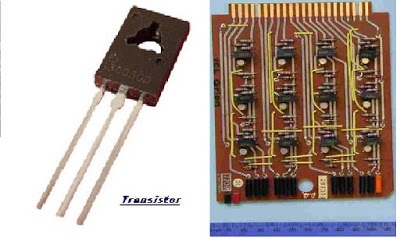
      Second Generation Computers: Around 1955 a device called Transistor replaced the bulky electric tubes in the first generation computer. Transistors are smaller than electric tubes and have higher operating speed. They have no filament and require no heating. Manufacturing cost was also very low. Thus the size of the computer got reduced considerably.
      It is in the second generation that the concept of Central Processing Unit (CPU), memory, programming language and input and output units were developed. The programming languages such as COBOL, FORTRAN were developed during this period. Some of the computers of the Second Generation were
      1. IBM 1620: Its size was smaller as compared to First Generation computers and mostly used for scientific purpose.
      2. IBM 1401: Its size was small to medium and used for business applications.
      3. CDC 3600: Its size was large and is used for scientific purposes.

      Third Generation Computers: The third generation computers were introduced in 1964. They used Integrated Circuits (ICs). These ICs are popularly known as Chips. A single IC has many transistors, registers and capacitors built on a single thin slice of silicon. So it is quite obvious that the size of the computer got further reduced. Some of the computers developed during this period were IBM-360, ICL-1900, IBM-370, and VAX-750. Higher level language such as BASIC (Beginners All purpose Symbolic Instruction Code) was developed during this period.
      Computers of this generation were small in size, low cost, large memory and processing speed is very high.

      Fourth Generation Computers: The present day computers that you see today are the fourth generation computers that started around 1975. It uses large scale Integrated Circuits (LSIC) built on a single silicon chip called microprocessors. Due to the development of microprocessor it is possible to place computer’s central processing unit (CPU) on single chip. These computers are called microcomputers. Later very large scale Integrated Circuits (VLSIC) replaced LSICs.
      Thus the computer which was occupying a very large room in earlier days can now be placed on a table. The personal computer (PC) that you see in your school is a Fourth Generation Computer.

      Fifth Generation Computer: The computers of 1990s are said to be Fifth Generation computers. The speed is extremely high in fifth generation computer. Apart from this it can perform parallel processing. The concept of Artificial intelligence has been introduced to allow the computer to take its own decision. It is still in a developmental stage.


      Thursday, 15 January 2015

      COMPUTER ORGANISATION

      COMPUTER ORGANISATION


      A computer is an organized set of activities. A computer system consists of following elements:
      1. HARDWARE

      2. SOFTWARE

      HARDWARE: The physical equipments and components which we can see, touch and feel in computer system are called hardware. Hardware is divided into four parts-
      1. Input device
      2. Output device
      3. Processing device
      4. Storage device or memory

      1. INPUT: This is the process of entering data and programs in to the computer system. Computer is an electronic machine like any other machine which takes as inputs raw data and performs some processing giving out processed data. Therefore, the input unit takes data from us to the computer in an organized manner for processing.
      Computer work on binary data (data having only 2 forms). It uses only two digits 0 and 1. as computer is an electronic device 0 is represented as off and 1 by on state. All input devices must provide a computer with data that are transformed into binary codes that the primary memory of a computer is designed to accept.
      Thus an input unit performs the following task:
      • It accepts the list of instructions and data from the user.
      • It converts these instructions and data in computer acceptable form.
      • It supplies the converted instructions and data to the computer system for further processing.

      Keyboard is an ideal example of an input device.


      KEYBOARD: Keyboard is an ideal example of an Input Device. The standard layout of letters, numbers, and punctuation is known as a QWERTY keyboard because the first six keys on the top row of letters spell QWERTY. The QWERTY keyboard was designed in the 1800s for mechanical typewriters and was actually designed to slow typists down to avoid jamming the keys.
      The keys in a keyboard can be broadly classified in three categories:


      • FUNCTION KEYS: These keys are usually on the top-most row labeled F1 to F12. A function key is a key on a computer or terminal keyboard which are programmed so as to cause an operating system command interpreter or application program to perform certain actions. The F1 key gradually became universally associated with Help in most early Windows programs.

      • TYPEWRITER KEYS: The major portion of keyboard has the normal typewriter like keys. It contains all the alphabets, numbers and punctuation symbols.

      • NUMERIC KEYS: This group is on the right side of the keyboard and resembles. A calculator keyboard with numbers 0 to 9. this group of keys helps to enter numeric data single-handedly. This pad works as the cursor control also. Pressing NUMLOCK key toggles between cursor control pad and numeric keypad.

      OTHER KEYS ON A COMPUTER KEYBOARD:
      Esc:
      Equivalent to clicking the Cancel button. In PowerPoint the Esc key will stop a running slide show. On a web page with animations, the Esc key will stop the animations. On a web page that is loading, the Esc key will stop the page from loading. The keyboard combination Ctrl + Esc will open the Start Menu.

      Print Screen/SysRq:
      Usually located at the upper right hand corner of your keyboard next to the Scroll Lock and Pause/Break keys. Often abbreviated Prt Scr, the Print Screen key is a useful key supported on most PCs. In DOS, pressing the Print Screen key causes the computer to send whatever images and text are currently on the display screen to the printer. Some graphics programs and Windows, use the Print Screen key to obtain Screen Captures.

      Scroll lock: When the scroll lock mode was ON, the arrow keys would scroll the contents of a text window instead of moving the cursor as usual.

      Tab:
      This key can be used to move forward through options in a dialog box.
      Ctrl + Shift + Tab can be used to move backward through the options.
      Ctrl + Tab allows movement from one open window to the next in an application with more than one open window.
      Alt + Tab displays a list of open application windows. Keeping Alt depressed and selecting Tab cycles through the list. Releasing selects the highlighted application window.

      Caps Lock:
      Locks the keyboard in "Capitals" mode (only applies to Alpha keys). The Caps Lock key should be used with caution. Using ALL CAPS is a usability no-no as many have difficulty scanning text that is ALL CAPS. Also, when sending email in all caps, this could be misconstrued as shouting at someone.

      Shift:
      The obvious use of this key is to allow selection of capital letters when depressing the alphabet characters, or selecting the characters above other non-alpha keys.
      Depressing the Shift key while inserting a CD-ROM will bypass auto play.
      Shift + Delete to permanently delete a selected item, bypasses the Recycle Bin.

      Space Bar:
      Insert a space between words. It is suggested that you utilize Tabs (or other formatting commands) to put distance between elements. Using the space bar to insert visual space works but would not be considered a best practice in page design. Double spaces between sentences are no longer required. This is a carryover from the days of fixed width fonts on a typewriter such as Courier, Orator, Prestige Elite, etc.
      Pressing the Space Bar while viewing a web page in Internet Explorer will scroll the page downwards. Shift + Space Bar will scroll the page upwards.

      Backspace:
      While working with text, use this key to delete characters to the left of the insertion point.

      Insert:
      In MS Word the characters typed from keyboard are inserted at the cursor position. As you type any text, the existing characters shifts to the right hand side to make space for newly inserted characters.

      Home:
      Depress and hold the Ctrl key as you select Home to go to the first line of a document.

      Page Up:
      In a browser window use the Page Up key to move up one full screen on a web page.

      Delete:
      While working with text, use this key to delete characters to the right of the insertion point. This key can also be used to delete selected files. If you use the keyboard combination Shift + Delete the item is permanently deleted, bypassing the Recycle Bin.

      End:
      Depress and hold the Ctrl key as you select End to go to the last line of a document.

      Page Down:
      In a browser window use the Page Down key to move down one full screen on a web page.

      Up Arrow:
      Navigate in a document to the line above. Hold the Ctrl key down as you press this key to move to the beginning of the second line above.

      Right Arrow:
      Navigate in a document one character to the right. Hold the Ctrl key down as you press this key to move one word to the right.

      Down Arrow:
      Navigate in a document to the line below. Hold the Ctrl key down as you press this key to move to the beginning of the second line below.

      Left Arrow:
      Navigate in a document one character to the left. Hold the Ctrl key down as you press this key to move one word to the left.